HOW TO DOWNLOAD AND INSTALL MATCHCATCH
Follow this guide to install MatchCatch from the App Store or Google Play, including help with age checks where required.
How to Download MatchCatch
- 1
Open the Store
Open the App Store (iPhone) or Google Play Store (Android).
- 2
Search MatchCatch
Search “MatchCatch.” Look for MatchCatch: Companionship by Matcha Pte. Ltd., with the tagline “Discreet. Real. No Swiping.” This confirms you've found the official app.
- 3
Tap to Download
Tap Get (iOS) or Install (Android) to download.
On iOS: If you've downloaded MatchCatch before, you may see a download-cloud icon instead of Get, tap it to reinstall. - 4
Open & Sign Up
Open MatchCatch once it's installed, and sign up using your email, phone number, Apple, Google, or Facebook.
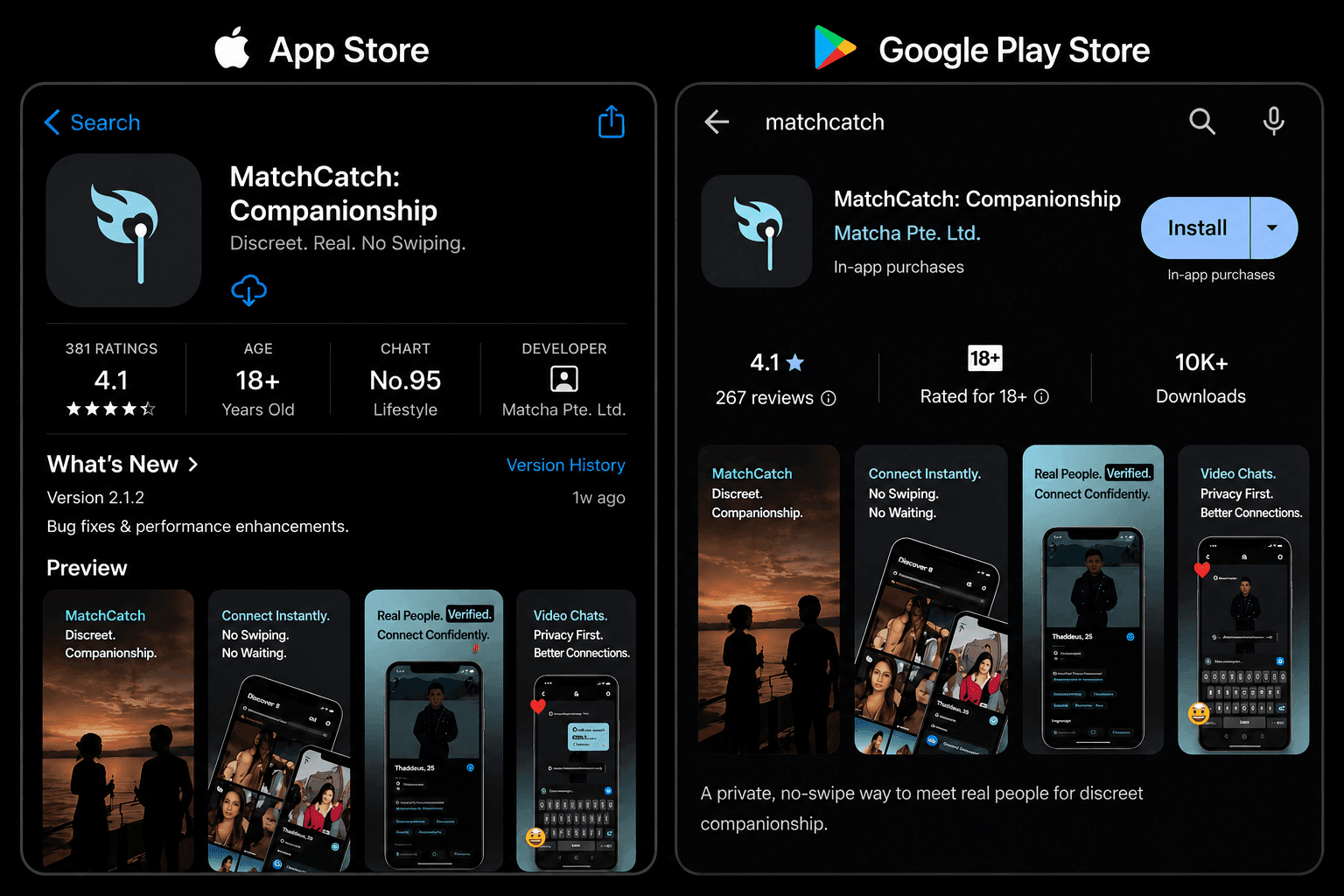
The official App Store listing | The official Google Play listing
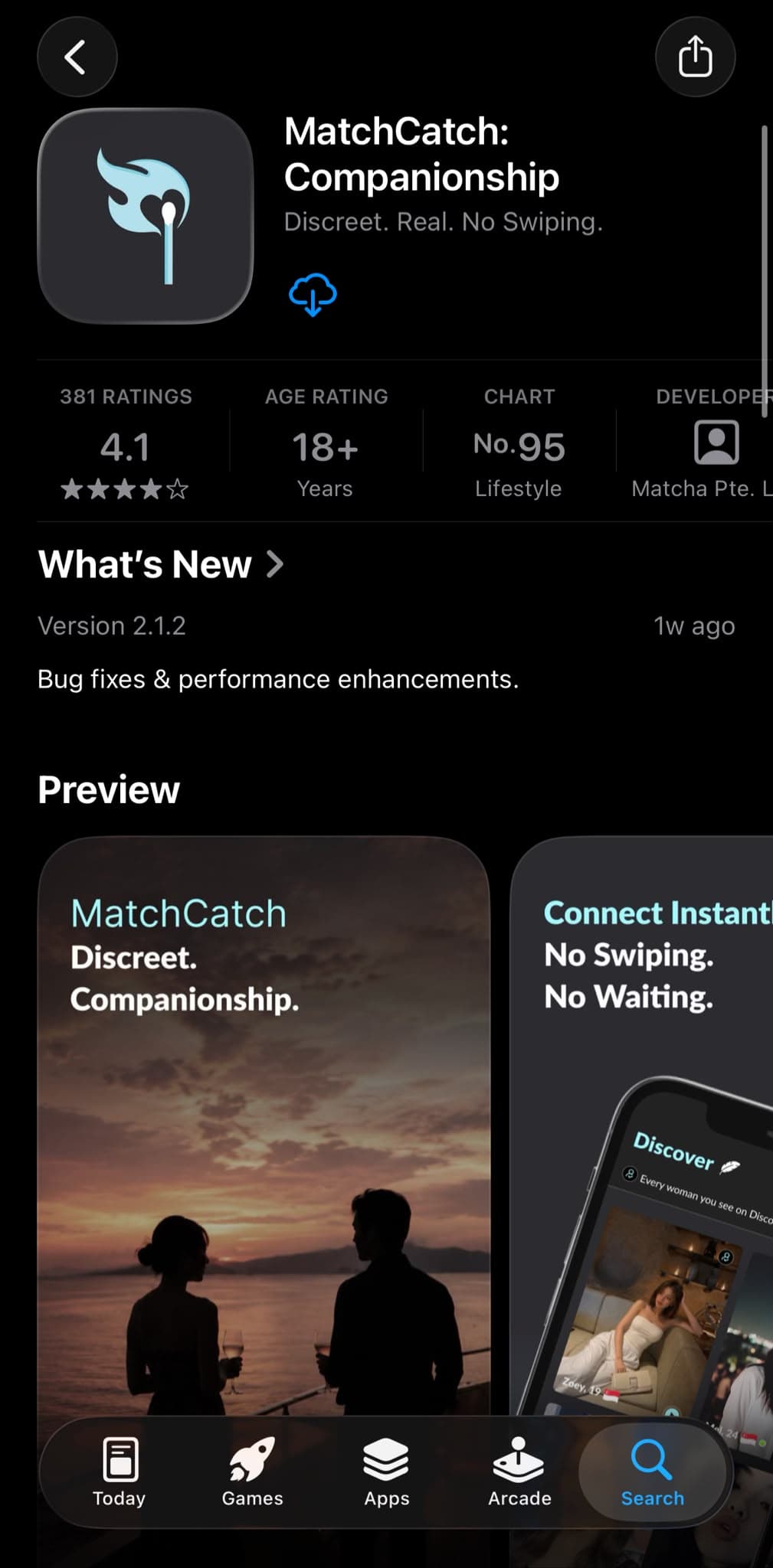
The official App Store listing
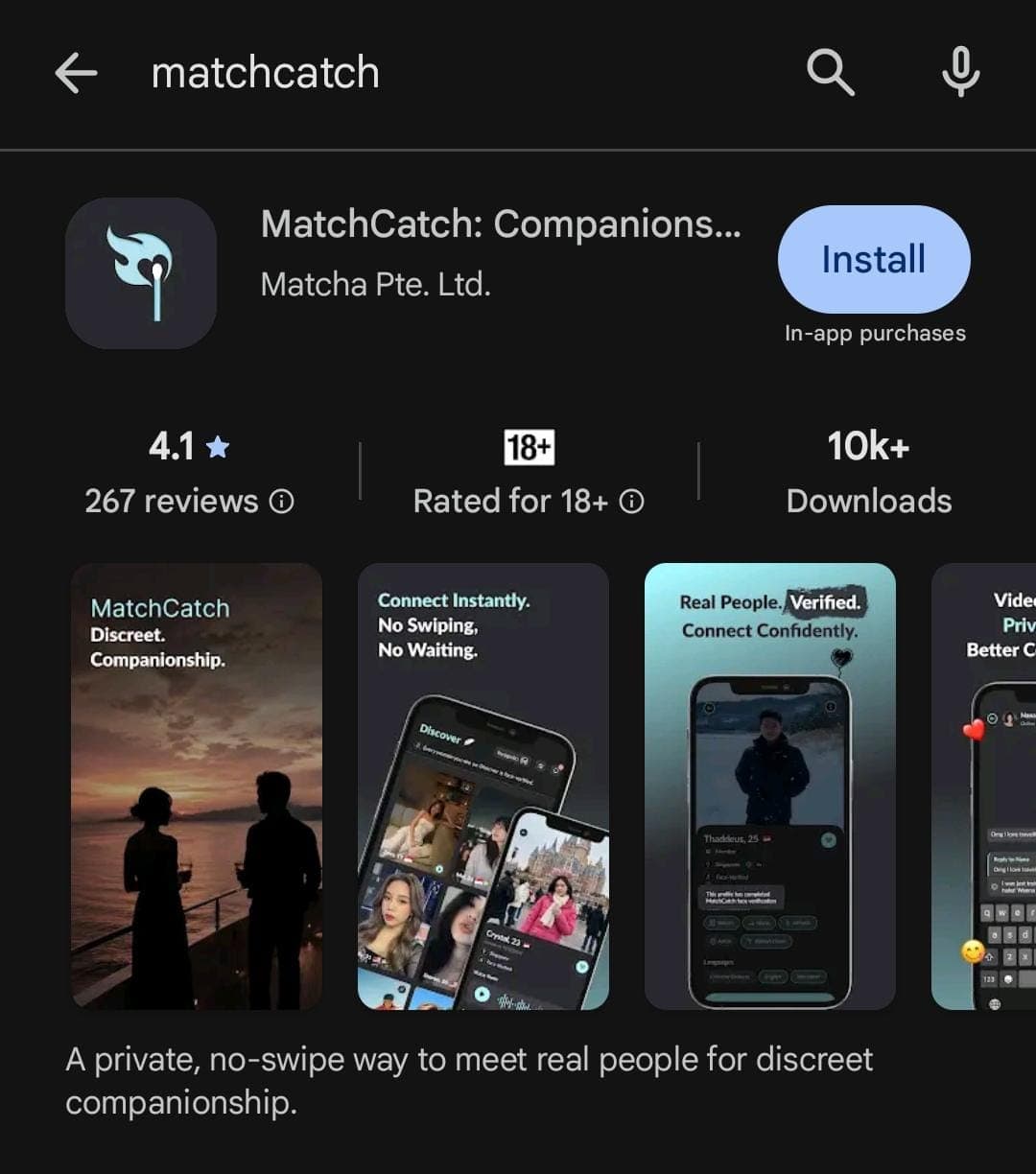
The official Google Play listing
If the App Store or Google Play asks you to verify your age before downloading, that's a requirement set by Apple or Google, not by MatchCatch. See the guides below if you get stuck on this step.
How to Verify Your Age (18+) Without a Credit Card
If the App Store asks you to confirm you're 18+ (as required by Singapore law), you don't need a credit card. You can verify with a National ID (NRIC/FIN) or a Driving Licence instead.
- Do not scan your card.
- Tap Enter Credit Card Manually.
- Scroll to the very bottom of the page.
- Tap Try Another Way.
- You'll see: “Use an ID to confirm you are 18+ (Driving Licence or National ID).” Tap Continue.
How Google Play Verifies Your Age
Google Play mostly estimates your age automatically, based on your Google account's activity, rather than showing every user a verification screen upfront. Most adult users won't see an age check at all when downloading MatchCatch.
If Google's estimate suggests your account may belong to someone under 18, you may be asked to verify your age before downloading. If this happens:
No Credit Card Needed
A government-issued ID (such as your NRIC or driving licence), matched against a quick facial scan, is usually accepted as an alternative.
Flexible Options
A credit card is offered as one verification option, but it isn't the only one.
Since this check depends on Google's own estimate and can vary by account, the screens you see may look different from the App Store steps above.
The above age verification guide covers Singapore's App Store and Google Play age verification requirements. If you're downloading from Malaysia, or other countries, and see a similar age-verification prompt, the steps may differ slightly.
Contact Support if you get stuck.